Text Overrides
Posted: Fri Jun 12, 2009 4:55 am
Hi all those wealthy in VBA/CAD knowledge, i'm trying to create a small routine that adds a simple text override to some dimensions on a drawing.
Here are some example before and after pics:
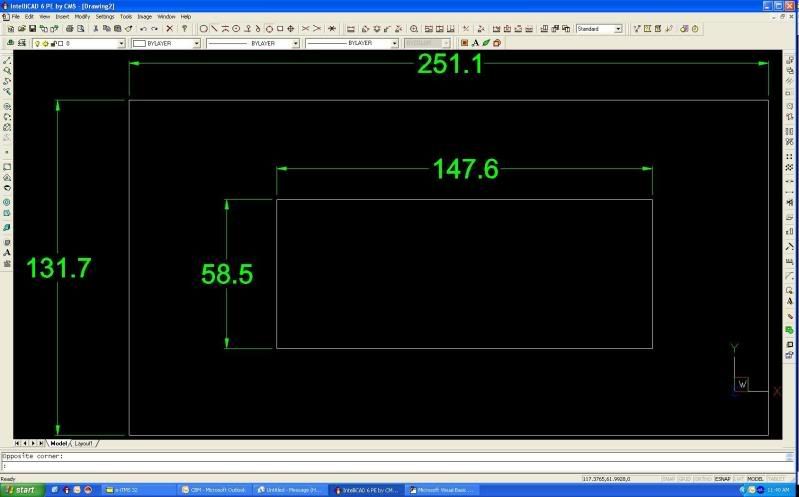
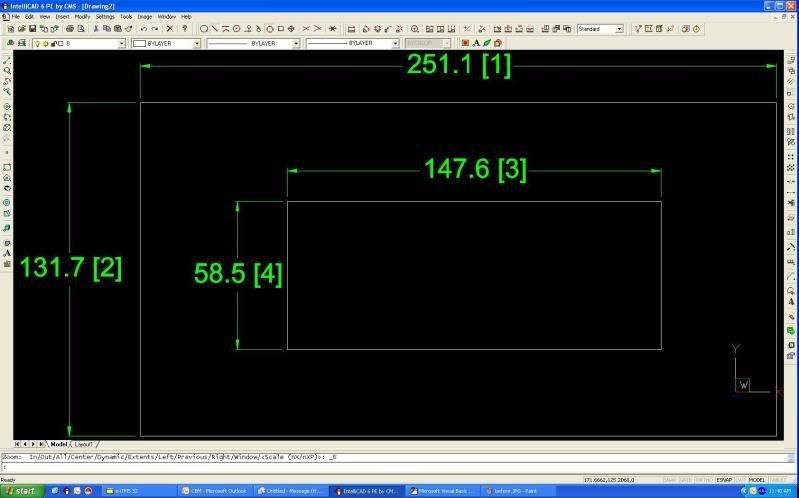
So far i have developed some code that lets me choose 4 dimensions in order of how i need the text overrides, so therefore the first dim i click on gets the text override value "<> [1]", the second dim gets text override "<> [2]" etc... This works fine but the problem i'm having is the dimensions are not updating visualy so to speak. If I double click a dimension it shows under Entity Properties that the text override has been changed correctly.
So far the only way i've found to fix this is by the following two methods:
1) Double click on dimension to bring up Entity Properties. Click Dimension Settings, then click OK without making any changes, then OK on Entity Properties. The override displays now.
2) Another way I can fix it is by going to Apply Styles, select all my Dims, and hit enter to re-apply style.
Is there a way using VBA code to refresh the dims and show the recent changes to the text override?
My Code thus far:
Also i need to eventually alter the code so that if i only have 2 dimensions on my drawing i can escape out of the current procedure without any errors and still update the dims i've selected so far. i.e. when my procedure asks for the third dimension i can hit "esc" and ignore dims 3 & 4.  at the moment i have to click on 4 different dimensions to finish the procedure properly.
Hope at least some of this makes sense
Thanks in advance for any help,
John
Here are some example before and after pics:
So far i have developed some code that lets me choose 4 dimensions in order of how i need the text overrides, so therefore the first dim i click on gets the text override value "<> [1]", the second dim gets text override "<> [2]" etc... This works fine but the problem i'm having is the dimensions are not updating visualy so to speak. If I double click a dimension it shows under Entity Properties that the text override has been changed correctly.
So far the only way i've found to fix this is by the following two methods:
1) Double click on dimension to bring up Entity Properties. Click Dimension Settings, then click OK without making any changes, then OK on Entity Properties. The override displays now.
2) Another way I can fix it is by going to Apply Styles, select all my Dims, and hit enter to re-apply style.
Is there a way using VBA code to refresh the dims and show the recent changes to the text override?
My Code thus far:
Code: Select all
'------------------------------------------------------

' Add Text Overrides

'------------------------------------------------------

Private Sub ChangeDimsButton_Click()

Dim PickDim1 As IntelliCAD.Dimension

Dim PickDim2 As IntelliCAD.Dimension

Dim PickDim3 As IntelliCAD.Dimension

Dim PickDim4 As IntelliCAD.Dimension

Dim Pnt1 As IntelliCAD.Point

Dim Pnt2 As IntelliCAD.Point

Dim Pnt3 As IntelliCAD.Point

Dim Pnt4 As IntelliCAD.Point

Dim NumberOfDims As Integer


DimsForm.Hide

Doc.Utility.GetEntity PickDim1, Pnt1, "Pick 1st Dimension"

PickDim1.Color = 5

Doc.Regen

Doc.Utility.GetEntity PickDim2, Pnt2, "Pick 2nd Dimension"

PickDim2.Color = 5

Doc.Regen

Doc.Utility.GetEntity PickDim3, Pnt3, "Pick 3rd Dimension"

PickDim3.Color = 5

Doc.Regen

Doc.Utility.GetEntity PickDim4, Pnt4, "Pick 4th Dimension"

PickDim4.Color = 5

Doc.Regen

PickDim1.TextOverride = "<> [1]"

PickDim1.Color = 3

Doc.Regen

PickDim2.TextOverride = "<> [2]"

PickDim2.Color = 3

Doc.Regen

PickDim3.TextOverride = "<> [3]"

PickDim3.Color = 3

Doc.Regen

PickDim4.TextOverride = "<> [4]"

PickDim4.Color = 3

Doc.Regen

DimsForm.Show

End SubHope at least some of this makes sense
Thanks in advance for any help,
John