I see this in the User's Manual:
Creating tool palettes and adding commands and blocks
Each tool palette that you create can contain any combination of tools that either run a command or insert a block.
To add a block to a tool palette
1 Open a drawing that contains blocks, or if necessary create and insert a block. For details, see “Working with blocks” on page 470.
2 Save the drawing. For details, see “Saving your drawing” on page 99.
3 Select the block in the drawing and drag-and-drop it to the desired tool palette.
I have standard blocks and details that I want to to insert from a custom palette, not the block explorer.
I can't "drag-and-drop" blocks from the drawing to the custom palette for insertion into other drawings. Is there a way that I am missing to make a custom palette with my standard blocks for insertion into my drawings?
Re: Creating Tool Palette to Insert Blocks
#2Sorry I can't help with your specific problem as I never able to customise the tool paletes.
So I have stuck with the old wa I did it for Autocad 9, Image menus like this:
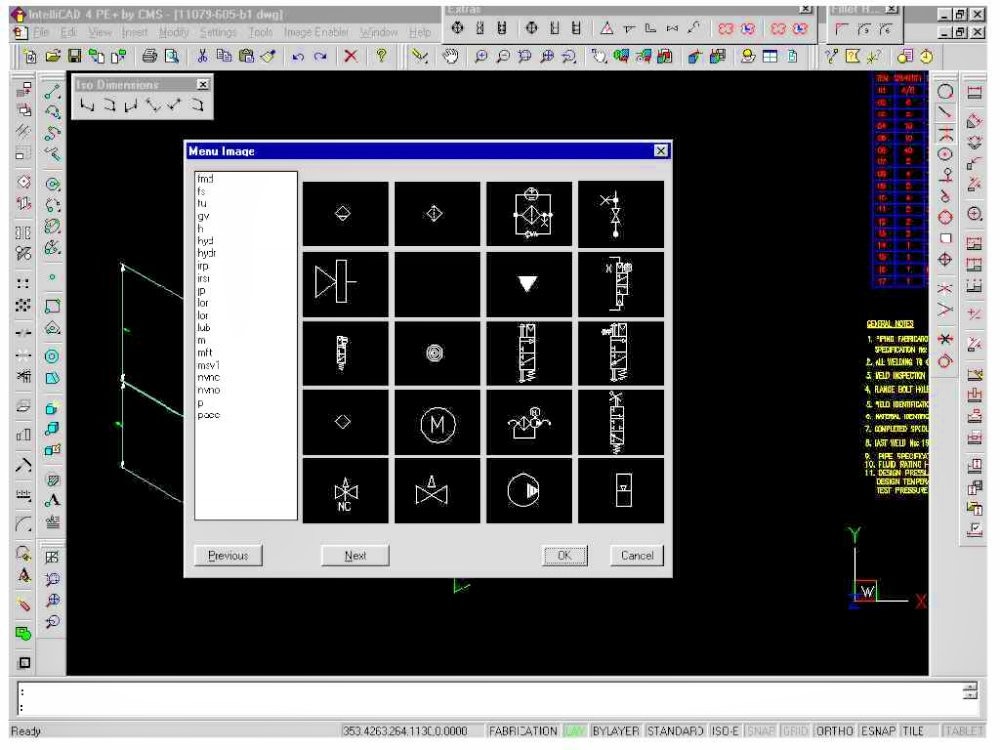 This is my Hydraulic symbols, I have another for welding symbols (BS22553), another for RSA sections, electrical symbols....
All based on Image Tile Menus.
So I have stuck with the old wa I did it for Autocad 9, Image menus like this:
All based on Image Tile Menus.
Re: Creating Tool Palette to Insert Blocks
#3Is anyone having problems migrating 11.1 palettes to 12.1? I have a fully functioning palette that inserts blocks in 11.1 but when I export the palette and then try to import to 12.1 the insert command and path to the blocks do no function.
Re: Creating Tool Palette to Insert Blocks
#4I ran into the same kind of issue before. What worked for me was not dragging directly from the drawing, but instead first creating a block library folder on my PC, then dragging the blocks from that folder into the tool palette. Once I did that, they inserted fine into other drawings.
For migrating palettes, I also noticed that exporting/importing between versions sometimes breaks the paths. You might need to manually reassign the block source folder in the tool palette properties after importing into 12.1. That fixed the "no function" problem for me.
For migrating palettes, I also noticed that exporting/importing between versions sometimes breaks the paths. You might need to manually reassign the block source folder in the tool palette properties after importing into 12.1. That fixed the "no function" problem for me.
